Workday Extend Security Best Practices: Protecting Your Custom Apps
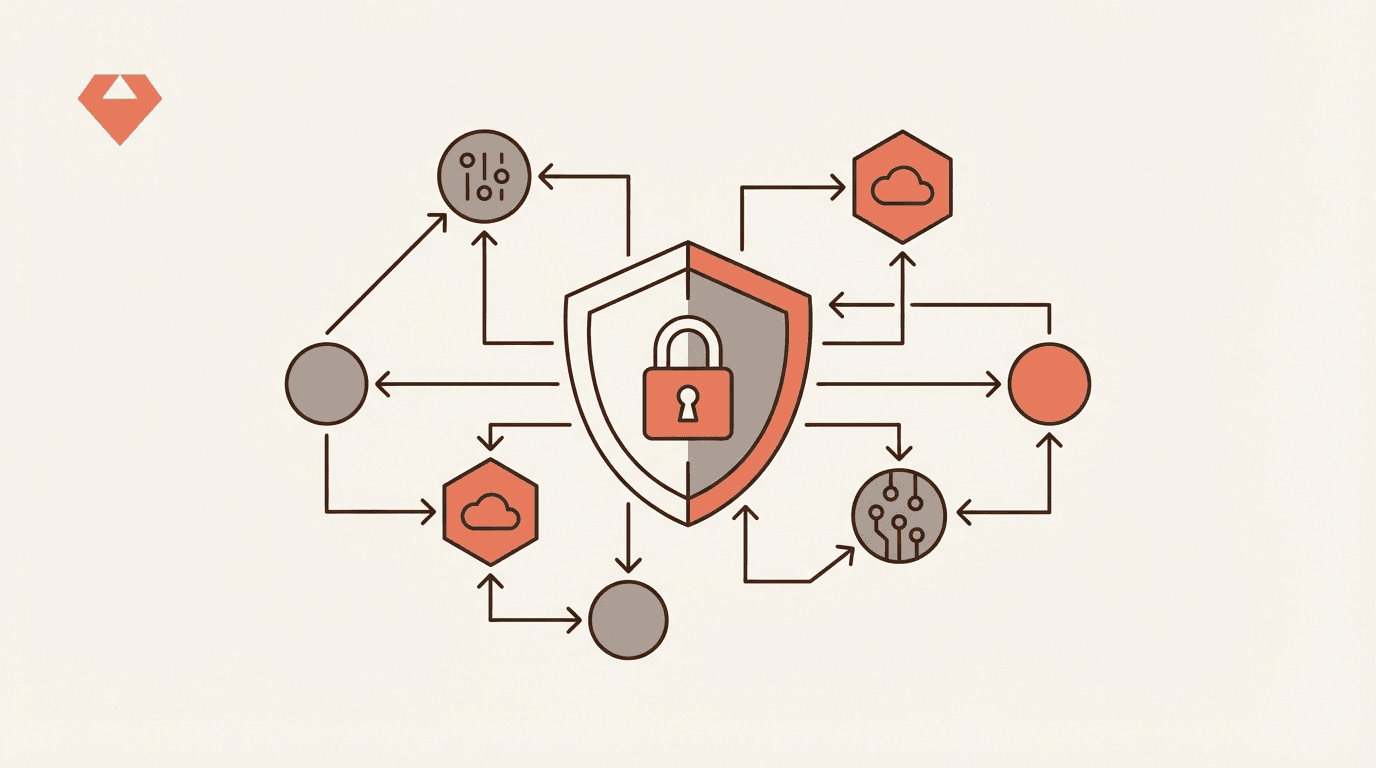
Workday Extend apps inherit the platform's configurable security model, which means custom business objects, business processes, and pages are all protected through the same security domains, functional areas, and security groups used across the core Workday tenant. Getting security right requires understanding how security domains act as model components, how Integration System Users (ISUs) authenticate, and how domain security policies control data access and permissions at a granular level.
Why Security Matters in Workday Extend
Every Workday Extend app you deploy becomes part of your tenant's security surface. Unlike standalone applications, Extend apps operate within the same configurable security framework as your core HCM, Finance, and Planning modules. A misconfigured security domain can expose sensitive employee data, while overly restrictive permissions can block legitimate business processes from completing.
The stakes are high: your custom apps handle business objects that often touch personally identifiable information, compensation data, and organizational hierarchies. A disciplined approach to security domains, functional areas, and authentication ensures your Extend apps are both functional and compliant.
Core Security Concepts for Workday Extend
Security Domains as Model Components
Security domains are the foundational building blocks of Workday Extend app security. When you create business objects and business processes in your app, you create security domains that protect access to your custom data and business processes. These security domains extend the Workday configurable security model, enabling you to use the same security groups already configured in the tenant.
Security domains are stored as .securitydomain files that secure all other model components in the same app. Each domain requires security policies for finer control over who can view, modify, get, or put data.
Key Security Domains for Workday Extend
The following security domains in the System functional area are essential for any Extend deployment:
| Domain | What It Controls |
|---|---|
| Workday Extend | Parent domain — controls access to all Workday Extend features |
| Custom Task | Controls which users can create and run custom tasks that execute your app |
| Manage: App Manager | Controls who can install and configure custom apps on the tenant |
| WQL for Workday Extend | Controls which users can invoke WQL queries from Extend apps |
App users need permissions to the domains that secure the custom tasks running your app. This is a commonly overlooked step — deploying an app without granting custom task domain access to the right security groups will leave users unable to launch it.
Functional Areas and Domain Organization
Workday organizes security domains into functional areas, creating a logical hierarchy. For Extend apps, the most relevant functional areas include:
- System — Contains the core Extend security domains (Workday Extend, Custom Task, Manage: App Manager, WQL for Workday Extend)
- Integration — Contains the Integration Security domain required for creating ISUs
- Organizations and Roles — Contains domains for managing role-based security groups
Understanding this hierarchy matters because when you configure domain security policies for a functional area, you are scoping permissions to a specific slice of the platform.
Security Domain Naming Conventions
Workday follows strict naming conventions for security domains that your Extend apps should also respect:
- Manage: (Name) — Secures cross-company, cross-functional, or cross-worker tasks, reports, and data. Examples:
Manage: Candidates,Manage: Cost Center. - Self-Service: (Name) — Secures employee self-service tasks. These domains can only have Self Groups (e.g., Employee as Self) on the policy. Examples:
Self-Service: Personal Information. - Audit: (Name) — Secures tasks and reports related to auditing data. Examples:
Audit: Contact Information,Audit: Worker IDs.
When adding security domains in your Extend app, follow these conventions to maintain consistency with the broader tenant security model.
Authentication: Integration System Users (ISUs)
Setting Up ISU Authentication
Integration System Users provide the authentication layer for Extend apps that need to interact with Workday APIs and data programmatically. The simplified ISU configuration — known as WCP Integration System User Authentication (WCPISU) — streamlines this process for Extend apps.
The required security permissions for ISU configuration are:
- For creating ISUs: Integration Security domain in the Integration functional area
- For assigning ISUs to an app in App Manager: WCP Integration System User Security domain in the System functional area
The WCP Integration System User Security domain specifically enables the Add Integration System User button in App Manager. Without this permission, administrators cannot associate an ISU with a deployed Extend app.
Developer Site Permissions
On the Workday Developer Site, additional permissions are required:
- Company Administrator access for adding consent for tenants to API clients
- Company Administrator access for deleting API clients associated with deleted ISUs
The 1:1 ISSG Best Practice
The relationship between Integration System Security Groups (ISSGs) and integrations should be 1:1 — each integration gets its own siloed security group. Think of security as a window: the window should only be opened as far as needed, and not a sliver more. An integration should have the security it needs, nothing more.
This means:
- Do not share an ISSG across multiple integrations or Extend apps
- Do create a dedicated ISSG for each Extend app
- Do grant only the specific domain permissions required for that app's functionality
There are narrow exceptions to the 1:1 model, but deviating should be a deliberate, documented decision rather than a shortcut.
Security Groups and Role-Based Access
Delivered Security Groups
Workday provides built-in security groups for managing tenant-wide security configuration:
| Security Group | Capabilities |
|---|---|
| Security Administrator | Manages all security-related information regardless of organization |
| Security Configurator | Assigns workers to security groups |
| Security Partner | Performs security management functions for assigned organizations |
| System Auditor | Audits security group setup |
Supporting Domains for Security Administration
To manage role-based security groups effectively, administrators need access to these domains:
| Domain | Functional Area | What It Enables |
|---|---|---|
| Security Administration | System | Manage who can assign role permissions; audit and administer security groups |
| Security Configuration | System | Create, view, and delete role-based security groups |
| Manage: Organization Roles | Organizations and Roles | Run audits and reports on roles |
| Set Up: Assignable Roles | Organizations and Roles | View and maintain roles |
Constraining Security in Business Processes
When you create a business process in your Extend app, consider security in context with routing requirements. You can route a business process to constrained security groups, ensuring that only specific roles can approve or act on steps within the process. This is critical for business processes that handle sensitive data such as compensation changes or organizational restructuring.
Practical Security Checklist
Follow this checklist when deploying a new Workday Extend app:
- Create dedicated security domains for every business object and business process in your app
- Follow naming conventions — use
Manage:,Self-Service:, orAudit:prefixes as appropriate - Create a dedicated ISSG for your app's ISU — never reuse an existing integration's security group
- Grant minimum necessary permissions — only open the security window as far as needed
- Configure custom task domains — ensure app users have permissions to the domains securing the custom tasks
- Activate pending security — a commonly missed step that causes "access denied" errors after deployment
- Test with a non-admin user — validate that security policies work correctly for actual end users, not just administrators
Troubleshooting Security Issues
When you encounter unexpected access problems, these reports and tasks can help diagnose the issue:
- Business Process Security Policies for Functional Area — View and edit business process security for a given functional area
- Domain Security Policies for Functional Area — View and edit domain security for a given functional area
- Security Analysis for Action — Run against yourself to see why you have access, then cross-compare with the ISU to determine what's lacking
- View Security for Securable Item — Determine what access is needed for a specific securable item such as a web service
Using a Custom Report to Determine Security
You can create a custom report to systematically determine which security policies apply to any report in the tenant:
- Use Create Custom Report to add a new Advanced report with the data source "All Custom Reports"
- Add these columns:
- Custom Report → Custom Report
- Fields Referenced in Report → Field Name
- Fields Referenced in Report → Report Fields Used for Security
- Fields Referenced in Report → Domain
- Domains Securing Report → Domain Security Policy
- Run the report, filter to the target report, and start with the Domain Security Policies, granting access as needed
Common Pitfalls
- Forgetting to activate pending security — Changes to security policies are staged, not live. Always activate pending security changes after making modifications.
- Language restrictions on tenant tasks — Some tasks have language restrictions that can block ISU access. Change the ISU's preferred locale to match the restriction if needed.
- Granting report ownership — To allow an ISU to own a report, add View and Modify access to the Custom Report Creation domain.
Frequently Asked Questions
What is the difference between a security domain and a security group in Workday Extend?
A security domain defines what is being protected — it secures business objects, business processes, tasks, and reports within your Extend app. A security group defines who has access. Security policies connect the two, specifying which security groups have view, modify, get, or put access to a given security domain. Consult the official Workday documentation at doc.workday.com for detailed configuration steps.
How do I grant users access to my deployed Extend app?
Users need permissions to the custom task domains that secure the tasks running your app. Configure these in the System functional area. Additionally, users need access to the parent Workday Extend domain. Use the Domain Security Policies for Functional Area task to review and configure these permissions, then activate pending security changes.
Should each Extend app have its own Integration System Security Group?
Yes. The best practice is a 1:1 relationship between ISSGs and integrations or Extend apps. Each app should have its own dedicated ISSG with only the permissions it needs. Sharing ISSGs across apps creates unnecessary risk — if one app is compromised or misconfigured, the blast radius extends to every app sharing that security group.
Why can't users see the "Add Integration System User" button in App Manager?
This button is controlled by the WCP Integration System User Security domain in the System functional area. Grant the appropriate security group access to this domain, then activate pending security changes. Administrators also need permissions to the Integration Security domain in the Integration functional area to create the ISU itself.
How do I audit which security permissions an Extend app currently has?
Use the Security Analysis for Action task to inspect access for a specific user or ISU. For a broader view, run the Domain Security Policies for Functional Area report filtered to the System functional area. The System Auditor security group is designed specifically for auditing security group setup across the tenant.
Key Takeaways
- Security domains are model components — treat them as first-class citizens in your Extend app architecture, not afterthoughts
- Follow the 1:1 ISSG rule — each Extend app gets its own dedicated Integration System Security Group with minimum necessary permissions
- Respect naming conventions — use standard prefixes (
Manage:,Self-Service:,Audit:) to keep your custom domains consistent with the platform - Always activate pending security — the most common deployment issue is forgetting this step
- Use built-in diagnostic reports — Security Analysis for Action and Domain Security Policies for Functional Area are your primary troubleshooting tools
- Test as a real user — never rely solely on administrator-level testing to validate your security configuration
Security in Workday Extend is not a one-time configuration task. As your app evolves and business requirements change, regularly review your security domains, permissions, and ISU configurations to ensure they remain aligned with the principle of least privilege.